Eye Conditions
Just been diagnosed? Start here. Plain-English guides to common eye conditions and what they mean for your sight.
Read moreChange your text size
Change colour contrast mode
Accessibility help
Just been diagnosed? Start here. Plain-English guides to common eye conditions and what they mean for your sight.
Read moreSomething to do, people to do it with. Activities and support groups across York, all designed around sight loss.
Read moreChange your text size
Change colour contrast mode
Accessibility help
Just been diagnosed? Start here. Plain-English guides to common eye conditions and what they mean for your sight.
Read moreIf the text in your Outlook mailbox is too small or hard to read, you can change it. This guide takes you through the menus to reach the font settings, where you can choose a typeface and size that works for you. The same steps also work for your Outlook calendar.
Step 1: Along the top line of your mailbox select View

Step 2: Click on the drop-down arrow next to “current view”

Step 3: Click on the option “View settings”

Step 4: Click the box which states “Other Settings” next to the text which says “Font and other table view settings”
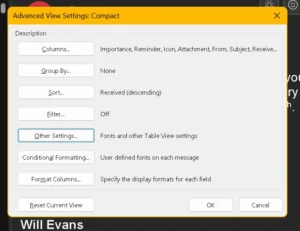
Step 5: From here you can identify the best font and size for you.

Once happy with the sizes select ok. This can be changed to suit your needs.
The same process can be completed for the Calendar in Outlook.