Eye Conditions
Just been diagnosed? Start here. Plain-English guides to common eye conditions and what they mean for your sight.
Read moreChange your text size
Change colour contrast mode
Accessibility help
Just been diagnosed? Start here. Plain-English guides to common eye conditions and what they mean for your sight.
Read moreSomething to do, people to do it with. Activities and support groups across York, all designed around sight loss.
Read moreChange your text size
Change colour contrast mode
Accessibility help
Just been diagnosed? Start here. Plain-English guides to common eye conditions and what they mean for your sight.
Read more
We have designed this site to be as readable as possible. However there are a number of tools that can adjust the colours, text size and other options to adapt it to your needs.
Accessibility Tools on the Website
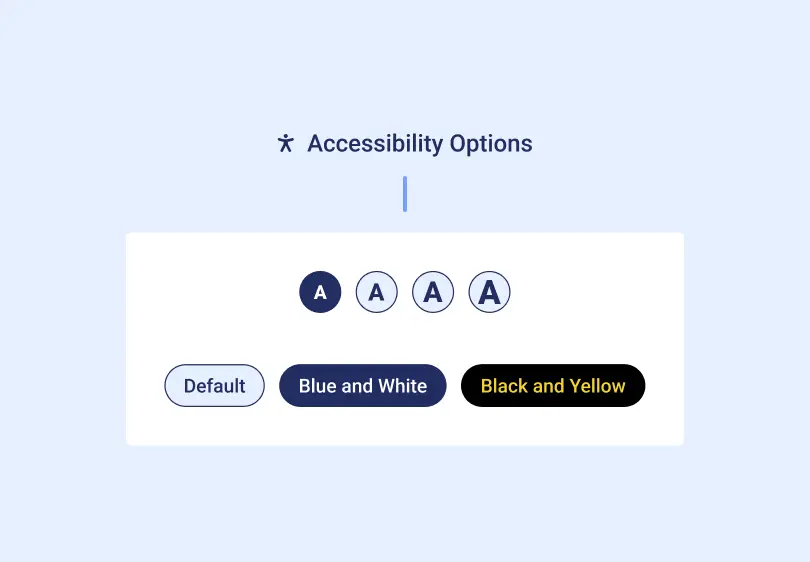
Our website has been designed and built to meet the WCAG guidelines for text size and colour contrast. However, you can also change these yourself.
In the top left of the website you’ll find a button labeled Accessibility Options which then shows different high contrast colour modes, as well as radio buttons to increase the text size.
Accessibility Tools on the Website
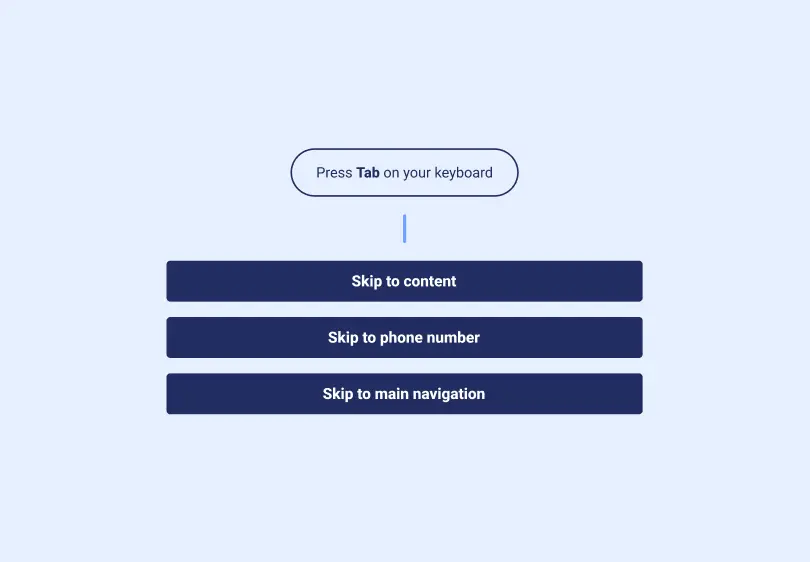
You can skip to different parts of each page you are browsing by pressing the Tab key on your keyboard.
This allows you to skip to the main navigation, the phone number, and the content on the page (allowing you to go straight to the content without having to tab through all of the navigation items).
Accessibility Tools on the Website
In the top left of the website, next to the Accessibility Options, you will find a button labeled ‘Listen to this page’.
Clicking on this initiates an text-to-speech option of the page you are currently on. This does not read out navigation items or footer elements etc, it just reads the content on the page.
Browser Tools
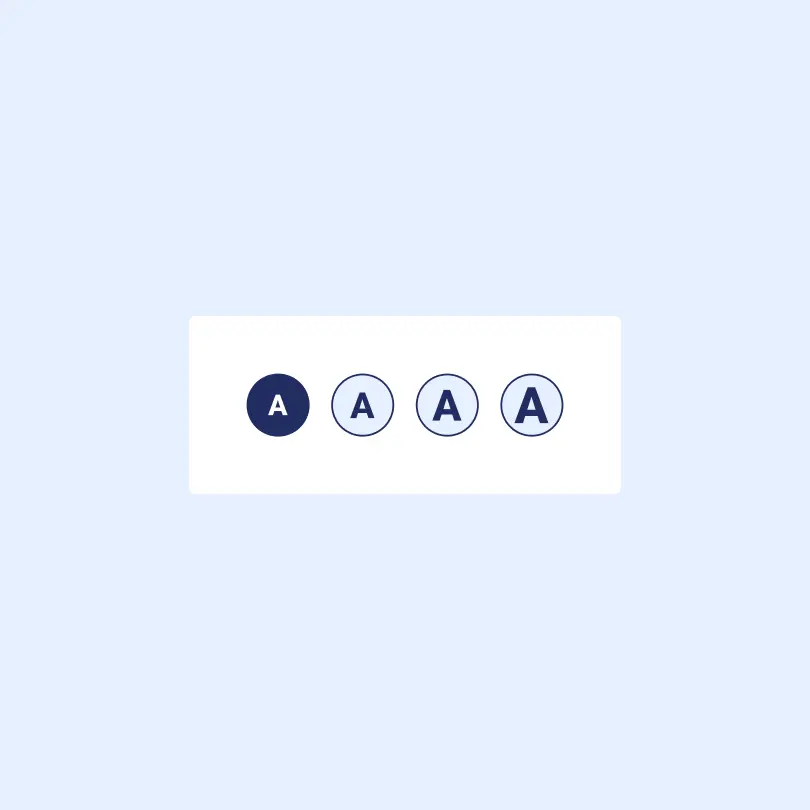
If you find that the font size and the font size tools used on this website aren’t sufficient for you, follow the steps below for the browser that you use.
Internet Explorer
Select “View” from the menu at the top of your screen. Choose “Text size” from the menu that appears and then choose the size that you would like to use.
You can also change the size using your keyboard.
Hold down the “Ctrl” key and then press “+” or “-” to increase or decrease the text size.
Firefox
Select “View” from the menu at the top of your screen. Choose “Text size” from the menu that appears and then choose whether you would like to increase or decrease the text size.
You can also change the size using your keyboard.
Hold down the “Ctrl” key and then press “+” or “-” to increase or decrease the text size.
Google Chrome
The easiest way is to hold down the “Ctrl” key and then press “+” or “-” to increase or decrease the text size.

Browser Tools
If you wish to show this website without loading the images, for instance if you are using screen reader software, please follow the steps for your web browser below:
Firefox
Select Tools from the menu bar at the top of the screen and choose Options then untick “Load Images automatically” and press OK. Then press refresh on your browser.
Internet Explorer
Select Tools from the menu bar at the top of the page and choose Internet Options. Select the Advanced tab and use the slider bar on the right of the small box to scroll down to Multimedia and unclick “Play animations in webpages” and “Show pictures”. Press OK and then press refresh on your browser.
Google Chrome
Click on the little spanner icon on the far right of the browser then select Settings. A new tab window will open. Select “Under the Bonnet” and under Privacy click on “Content Settings” and under Images click the radio button “Do not show any images” then close this tab window. Press refresh on your browser.